
Context Graph (Beta)
Connect your systems, vendors, and data so reviews can use the context they share.
The Context Graph maps what your organization uses and how it connects. Use it to understand dependencies, maintain system records, and reuse supporting context across project reviews.
For example, attach a vendor's security report to its record, then connect that vendor to the projects that use it. When those connections carry review context, new reviews can use the report without you uploading it to each project.
Context Graph is in beta. Contact Clearly AI to enable it for your organization. While enabled, it replaces Inventory in the sidebar.
How it works
The graph has three building blocks:
| Building block | What it represents | Example |
|---|---|---|
| Node | Something your organization tracks | An application, vendor, or data store |
| Attribute | A detail about a node | A vendor's certifications or a data store's region |
| Relationship | A connection between nodes, or between a node and a project | An application Depends on a vendor |
Clearly AI uses material already in your workspace to suggest nodes, relationships, and missing details. By default, suggestions wait for someone to approve them.
Some relationships also carry review context. These allow documents attached to a node to be included in reviews of connected projects. Administrators control which relationship types carry context and how far that context can travel.
Get started
Enable Context Graph
Ask your Clearly AI contact to enable the feature. Once enabled, Context Graph appears in the sidebar and in Settings.
Clearly AI begins analyzing existing project descriptions, processed sources, and completed review answers to suggest types and nodes.
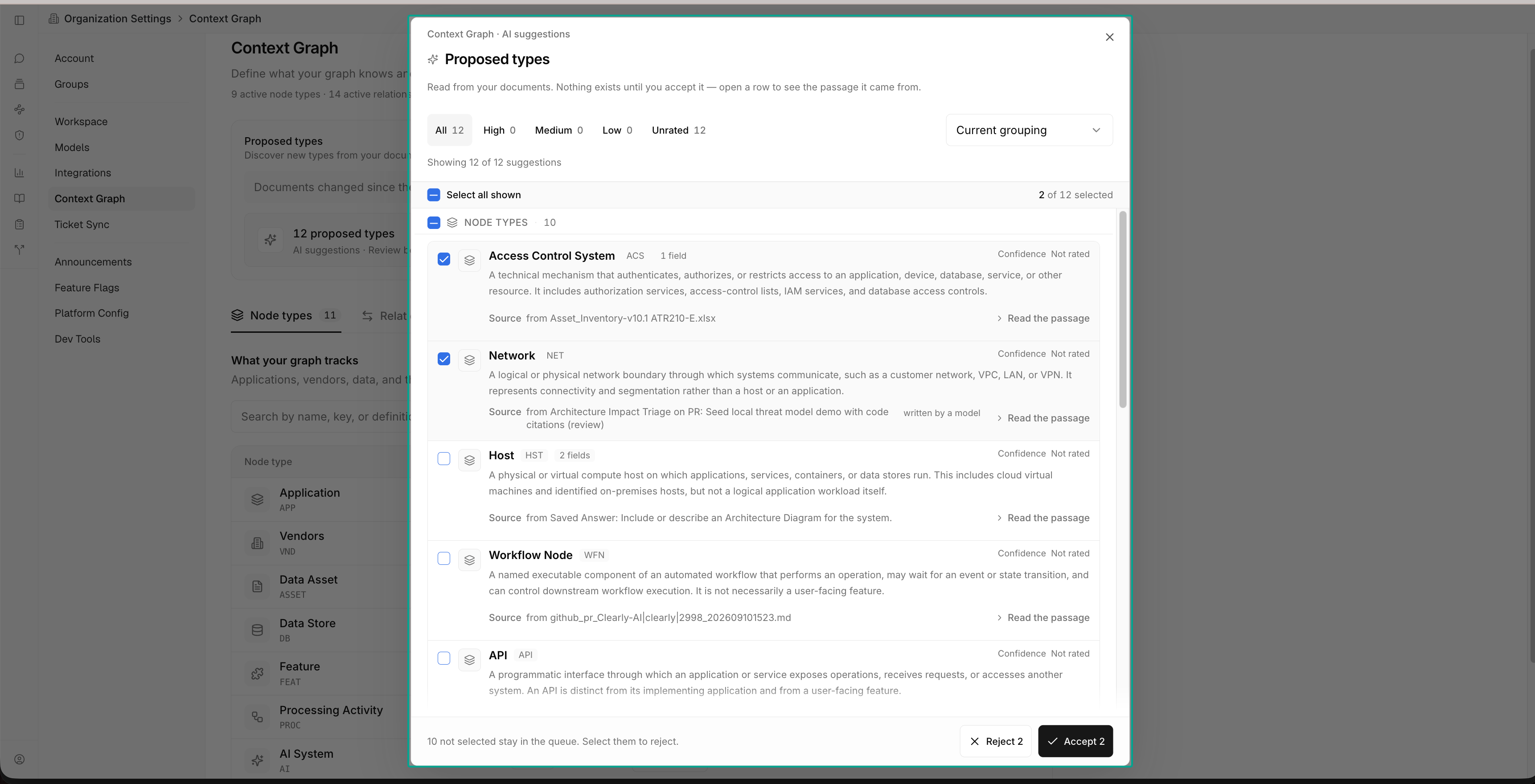
Review suggested types
Go to Settings > Context Graph and open Proposed types.
Types define what your organization tracks and how those records connect. Review the supporting source for each suggestion, then accept, edit, or reject it.
Newly accepted relationship types have Carry review context turned off. An Owner or Admin can enable it separately.
Review suggested nodes
Open Context Graph > All nodes, or a specific type's directory, and select Review in the Proposed nodes strip.
Accept the records you want to track. You can also create a record yourself with New node or New vendor, for example.
Connect a project
Open a node and select Link project on its Overview tab. You need Contributor or Owner access to the project.
The project appears on the node, and its new reviews can use the node's processed documents. Before starting a review, check Confirm review context to see the included sources.
Track your systems, vendors, and data
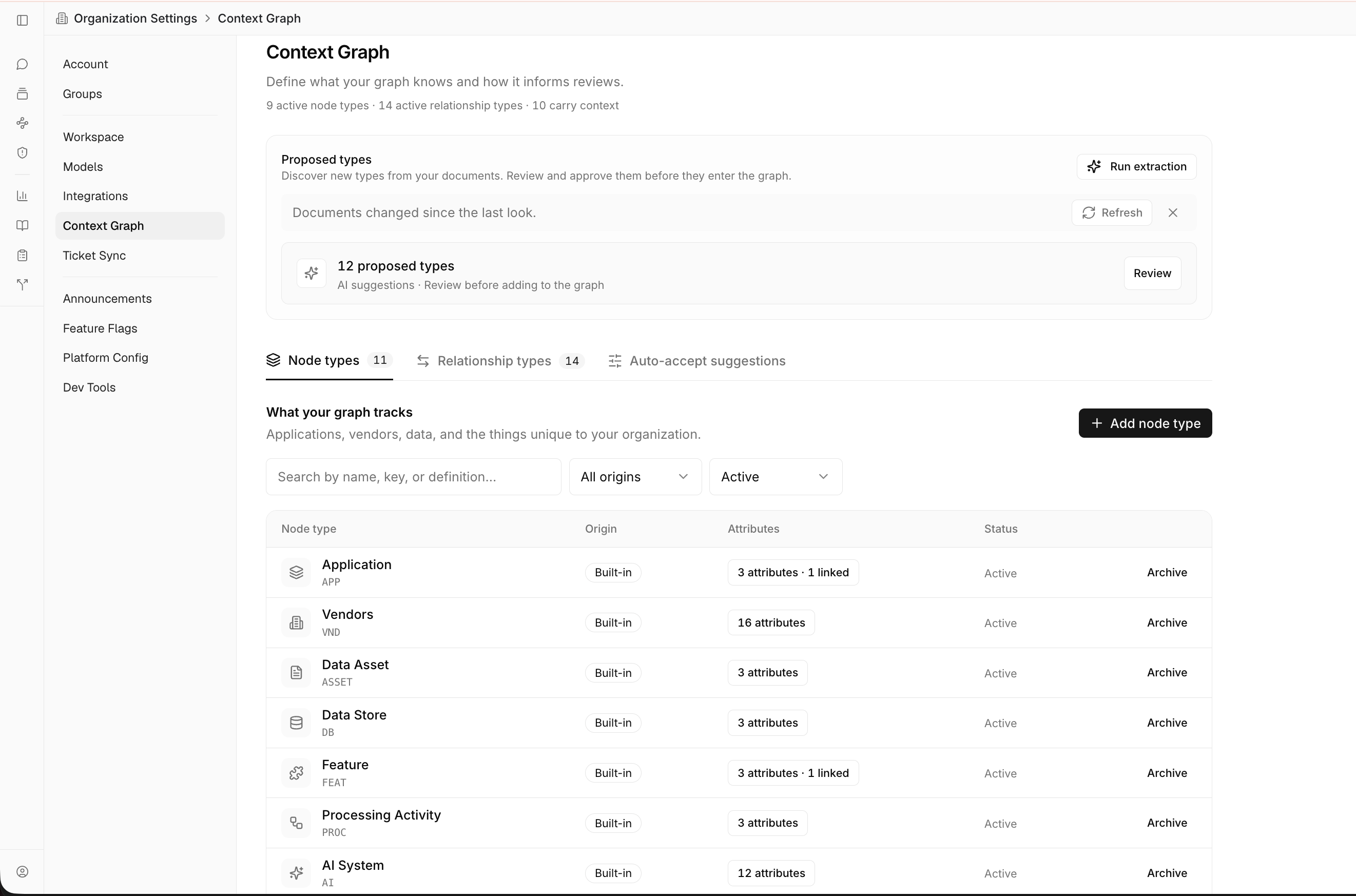
Context Graph includes seven node types. Administrators can customize them or add new ones.
| Type | Use it to track | Example attributes |
|---|---|---|
| Applications | Applications your organization builds or uses | Kind, criticality, exposure |
| Vendors | Third-party providers | Website, data access level, certifications |
| Data Assets | The data your organization holds | Classification, personal data, retention period |
| Data Stores | Where data is stored | Engine, encryption at rest, data residency |
| Features | Product features and capabilities | Lifecycle, user access, sensitive data |
| Processing Activities | How and why data is processed | Purpose, data subjects, legal basis |
| AI Systems | AI systems your organization builds or uses | Model provider, risk tier, training on customer data |
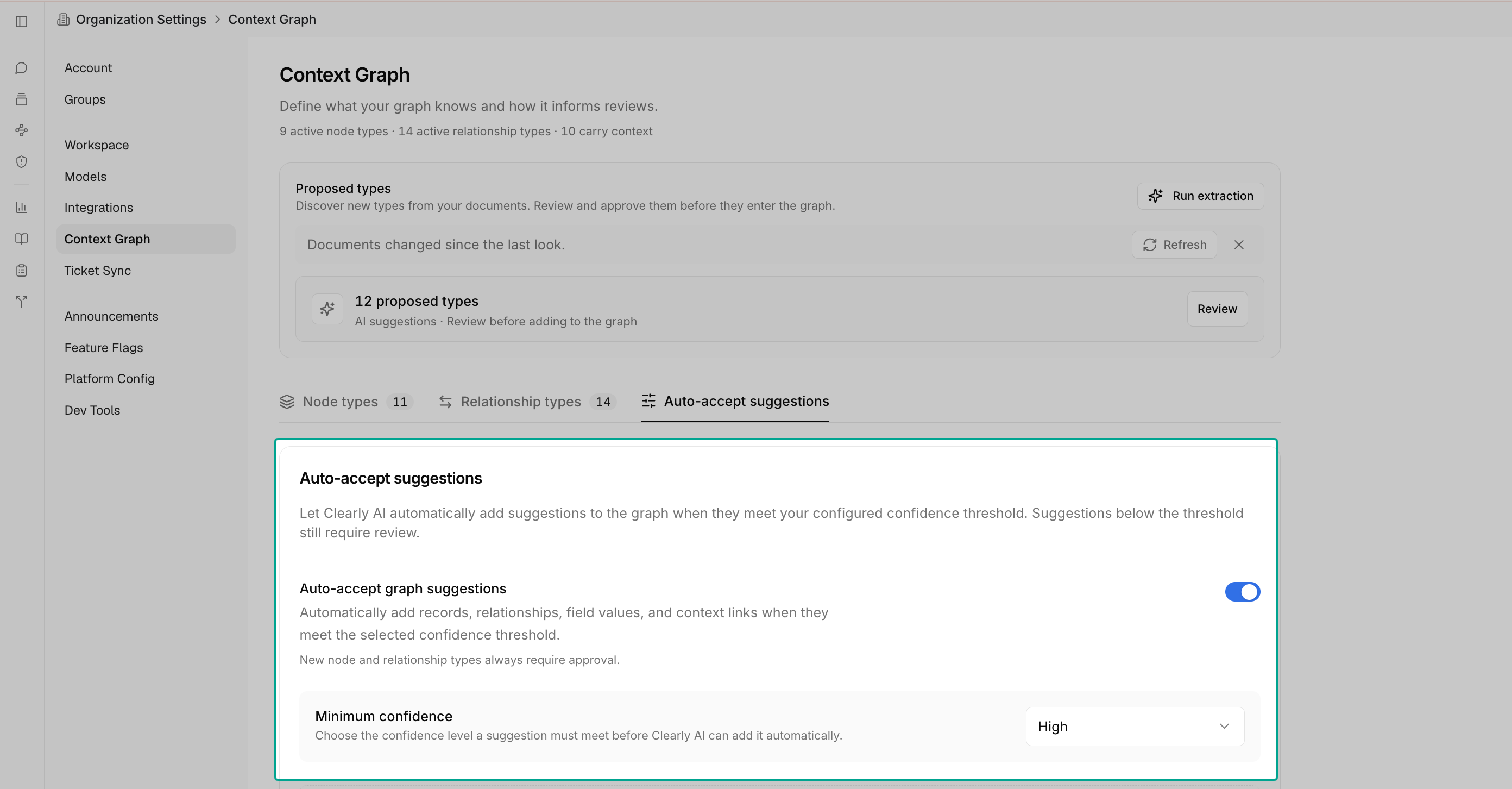
Each node has a name, optional description, owners, and an Active or Archived status. It also has a stable ID, such as VND-00042, which stays the same after a rename.
Assigning an owner gives that person permission to manage the node without changing their organization role. Archiving a node preserves its history and relationships but stops it contributing context to new reviews.
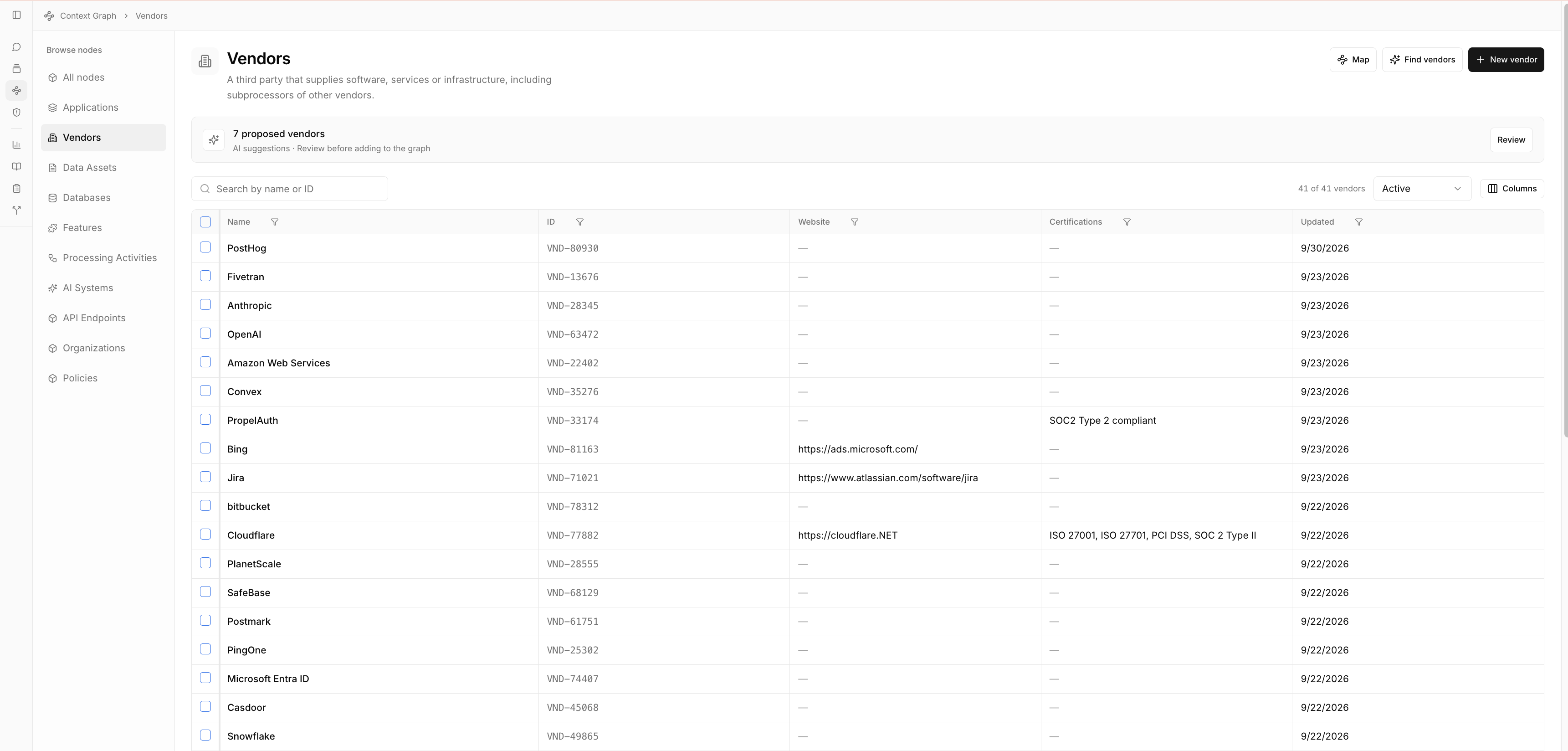
Browse the directory
Open Context Graph to see All nodes, then choose a type to narrow the list. Search by name or ID, filter records, and use Columns to choose which details appear. Your column preferences are saved separately for each view.
Open a node to find:
| Tab | What you'll find |
|---|---|
| Overview | Attributes, owners, and linked projects |
| Relationships | Existing connections, supporting evidence, and suggested relationships |
| Reviews | Completed reviews associated with the node, grouped by project |
| Sources | Attached documents and suggested documents |
| Activity | A history of changes and who made them |
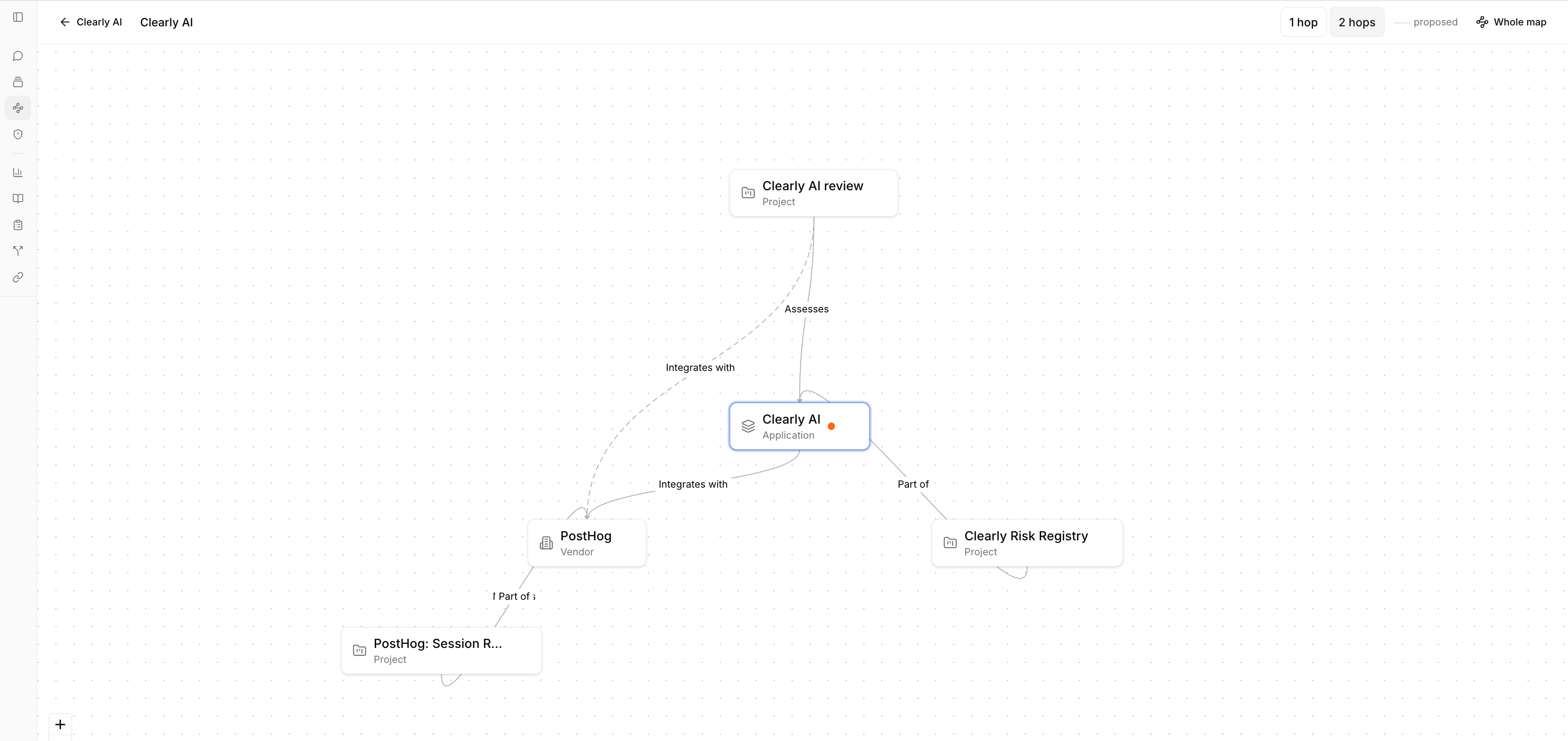
Explore connections visually
Select Open canvas on a node's Relationships tab to explore its connections. Switch between one and two hops, click a neighboring node to explore its connections, or double-click to open its page. Dashed lines show proposed relationships.
Select Map to browse the wider graph. Filter by type or severity, search for a node, or select a relationship to check whether it carries context. You can accept or reject proposed relationships from the map. Proposed nodes appear separately in the Pending panel.
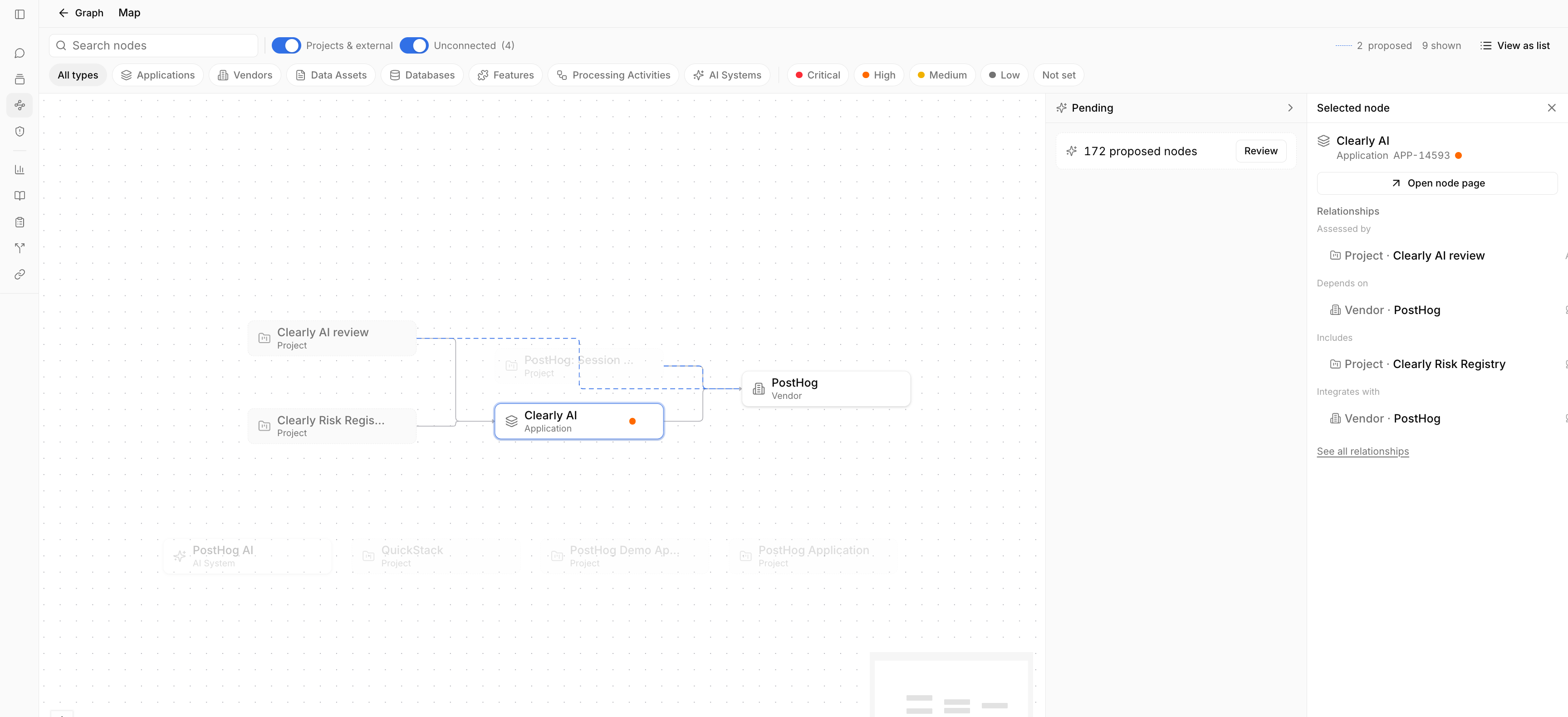
Large graphs may exceed the visual view's display limit. A banner indicates when this happens and links to the list.
Add and review relationships
A relationship describes how two records connect. For example, Depends on reads as Used by from the other end.
To add one manually:
- Open a node's Relationships tab.
- Select Add relationship.
- Choose the direction, relationship type, and connected node or project.
- Check the preview sentence and add a description if useful.
Descriptions help explain the connection. For example, "Sends application logs containing customer identifiers" gives a reviewer more context than "Depends on" alone.
You can edit descriptions later. Removing a relationship stops it carrying context immediately and preserves the change in the node's history.
Review AI suggestions
Select Review suggestions on a node's Relationships tab to inspect proposed connections. Each suggestion includes its source and confidence.
You can Accept, Reject, or Edit a suggestion before accepting it. Rejected suggestions are remembered and are not proposed again.
| Confidence | Meaning |
|---|---|
| High | Your organization's writing states the information explicitly and precisely, or multiple passages support it |
| Medium | One document supports it, or the wording allows more than one interpretation |
| Low | It comes from a passing mention or an inference |
Suggestions supported only by the Agent review answer are capped at Medium confidence and cannot be accepted automatically.
You can filter and sort suggestions by confidence. For nodes, types, values, and documents, the review dialog lets you accept or reject a selection. High- and Medium-confidence rows start selected; unselected suggestions remain in the queue.
Reuse documents in reviews
Documents attached to a node can become inherited context for connected projects. Uploading a document alone does not make it available to a review: the connection must carry context, and the document must finish processing.
Link an existing project
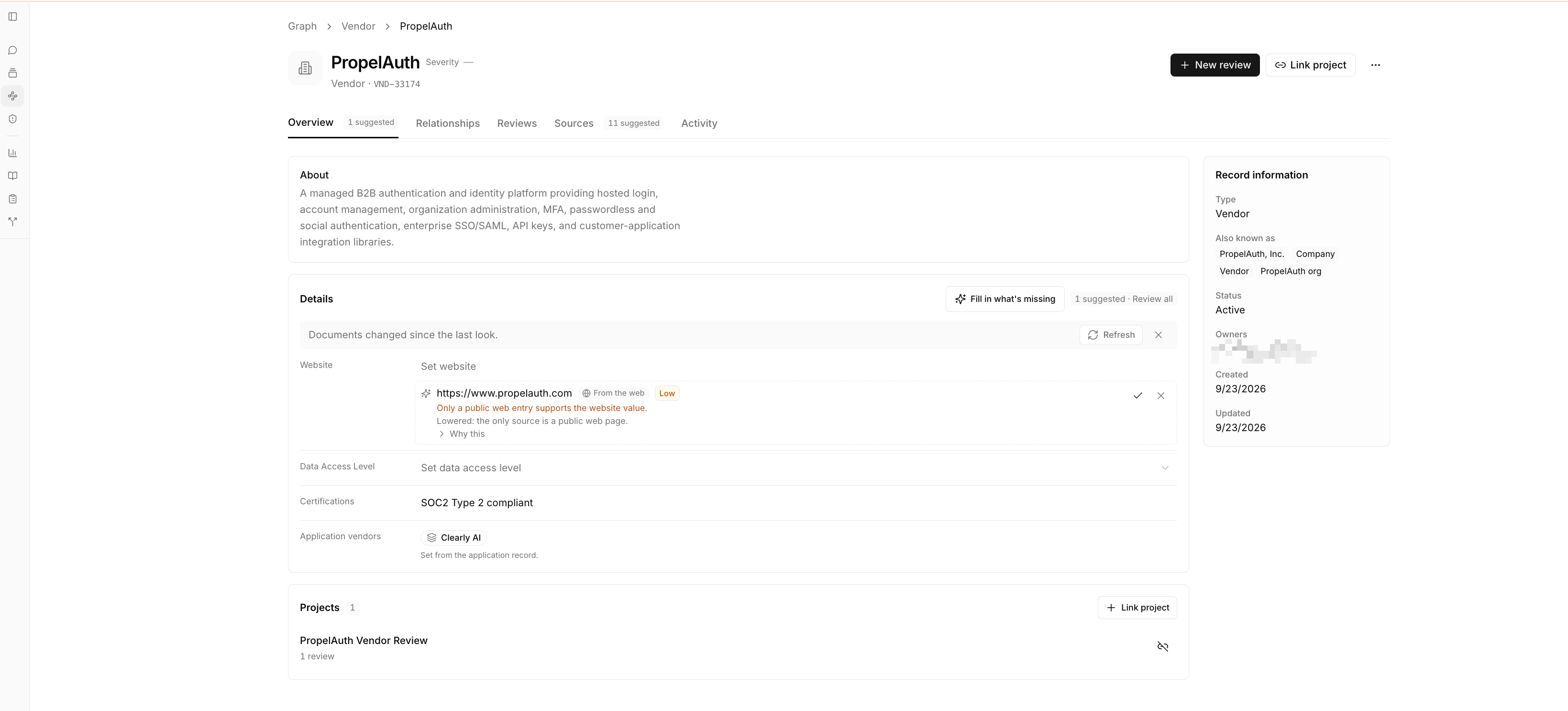
Open a node's Overview tab and select Link project. The project appears in the node's Projects panel, and its completed reviews appear on the node's Reviews tab.
You need Contributor or Owner access to the project. Linking does not change anyone's direct access to the project or its documents.
Choose context from a project
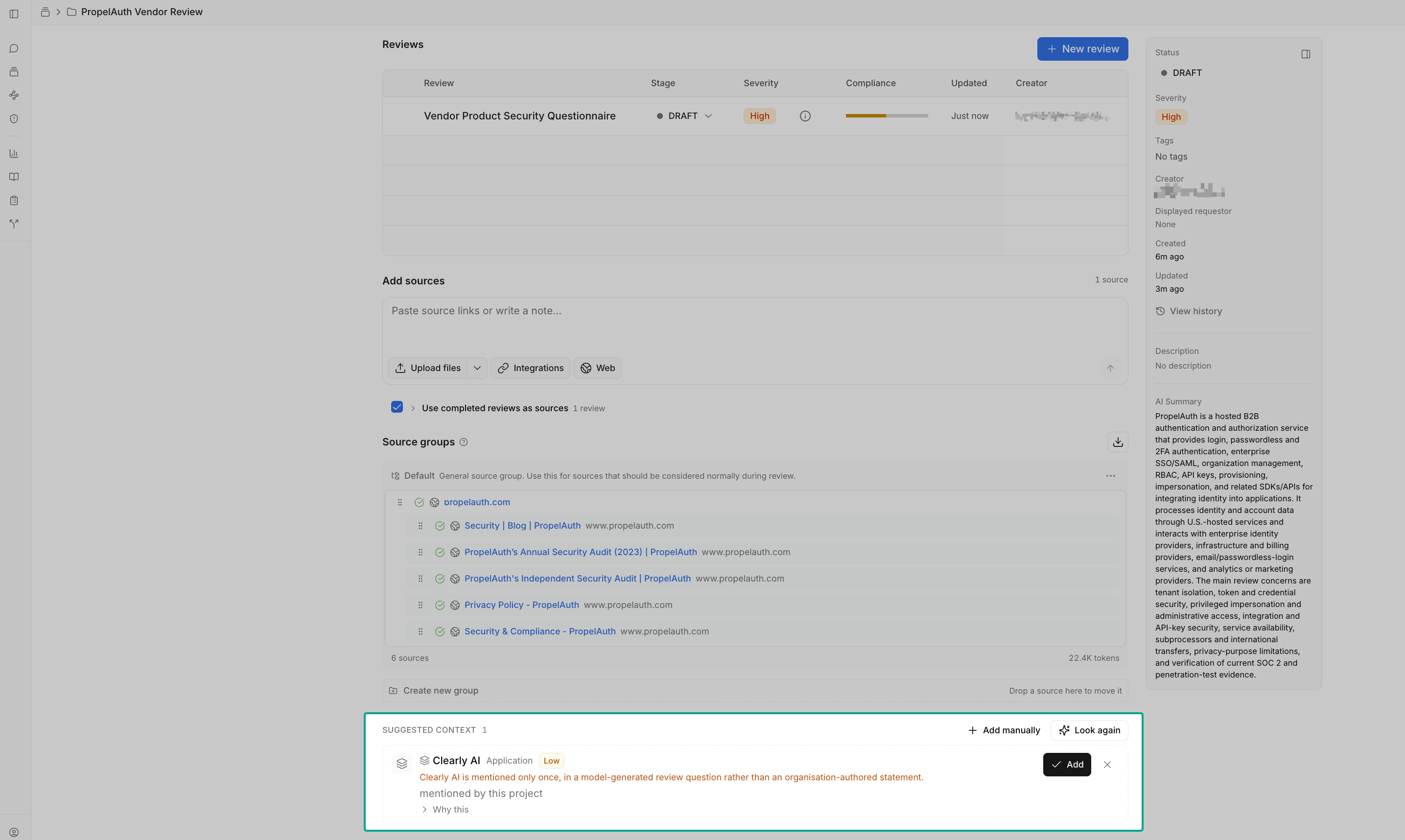
On a project page, use Suggest context to find relevant existing nodes. Open Why this to inspect the supporting passage, then review the relationship and note before selecting Add. Use Look again after the project's documents change.
Suggestions link to existing nodes; they do not create new ones. A suggestion that carries context explains that it will add the node's documents to the project's reviews.
To choose a connection yourself, use Add context. Relationship options are grouped into Brings documents into this project and Other links.
The project's Inherited context section shows which nodes contribute documents. Expand a node to see its documents.
Understand context reach
Administrators set Carry context and Reach for each relationship type.
- 1 hop allows context from a directly connected record.
- 2 hops can include context from a further connected record, subject to the relationship settings.
For example, a project connected to a vendor may also receive documents from that vendor's subprocessors when the configured relationships and reach allow it.
Review context can include restricted documents
A review can use documents from a linked node even when the person running it cannot open those documents directly. Owners and Admins control which relationship types carry context. Adding any connection that brings context into a project requires Contributor or Owner access to that project.
Start a review and check its sources
Select New review on a node to start the review flow with suggested templates selected.
Reviews always belong to projects. If the node has no project, Clearly AI creates and links one. If it has several, you choose which project to use.
Before the review runs, the Confirm review context dialog lists everything it will read. The project's own sources come first. Each linked node that contributes documents then gets its own group, labeled with the node's type. If a document you expect is not listed, see Why is a node's document missing from a review?.
Afterward, sources used records what the review read. This record is a snapshot: removing a relationship or archiving a node changes future reviews without altering completed ones.
If a review finds new relationships, a badge such as 2 relationships proposed appears in its toolbar. Select it to find the nodes where those suggestions are waiting for review.
Keep the graph up to date
Clearly AI suggests updates as documents are processed, projects change, and reviews finish. You can also request suggestions yourself.
| To find… | Select… | Where |
|---|---|---|
| Connections for a node | Find relationships | Node's Relationships tab |
| Relevant existing documents | Find documents | Node's Sources tab |
| Missing attribute values | Fill in what's missing | Node's Overview tab |
| More nodes of a type | Find vendors, for example | Type's directory |
| Relevant nodes for a project | Suggest context | Project page |
| New node and relationship types | Run extraction | Settings > Context Graph |
Find relationships reads the node's documents, linked project descriptions, and those projects' completed reviews. Fill in what's missing proposes values only for blank attributes; it does not overwrite existing values.
When relevant material changes, the graph offers Refresh. Clearly AI reuses previous analysis and processes changed material. If a run fails, select Retry.
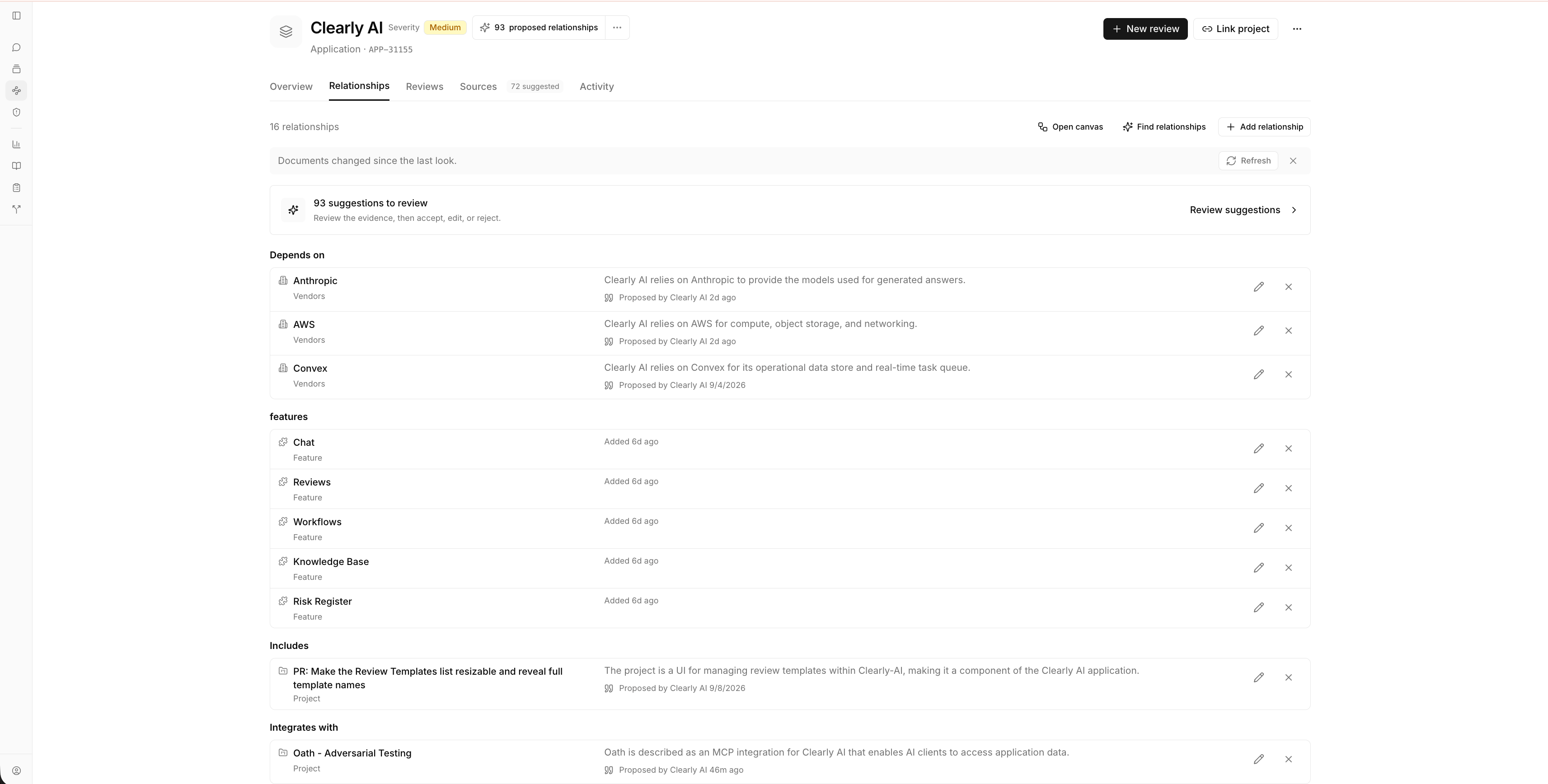
Accepted relationships are checked automatically when their evidence has not been re-read for 30 days. If changed evidence no longer supports a relationship, Clearly AI closes it while preserving its history. If the source was deleted, it flags the relationship for review. Unchanged evidence is not retracted simply because a later run does not mention the relationship.
Use Chat to explore
You can ask Chat to search for nodes, explain their details, and explore their relationships.
Asking Chat to record a relationship starts a proposal process. The result follows the same approval rules as other suggestions.
Administrator settings
Owners and Admins manage the graph in Settings > Context Graph.
Customize types and attributes
Use Node types to add or rename types, customize attributes, and archive types you no longer need. Each type's definition helps Clearly AI identify relevant information in your documents.
Attributes support text, long text, numbers, yes/no values, dates, and choices. Each type supports up to 64 attributes.
Archiving a type hides its records from All nodes without deleting them. Restoring the type brings them back.
Use Relationship types to configure labels, reverse labels, context sharing, and reach.
Add linked fields
A linked field connects records through a field on the node, such as a Vendor field on an application. Its value is a relationship, so the connection also appears in the graph.
To create one, open a node type's attributes, select Add attribute, and choose a node type under Another record. Set how many links each side can have and whether to show a matching field on the other type.
Each type supports up to 16 linked fields, in addition to its 64 attributes.
Before saving, keep these restrictions in mind:
- Saved linked fields cannot be changed or removed.
- Their relationship types start with Carry context turned off.
- Values are set from the node's Details card after creation.
- The matching field on the other node is read-only.
You need edit access to the node where the link starts to set its value.
Automatically accept suggestions
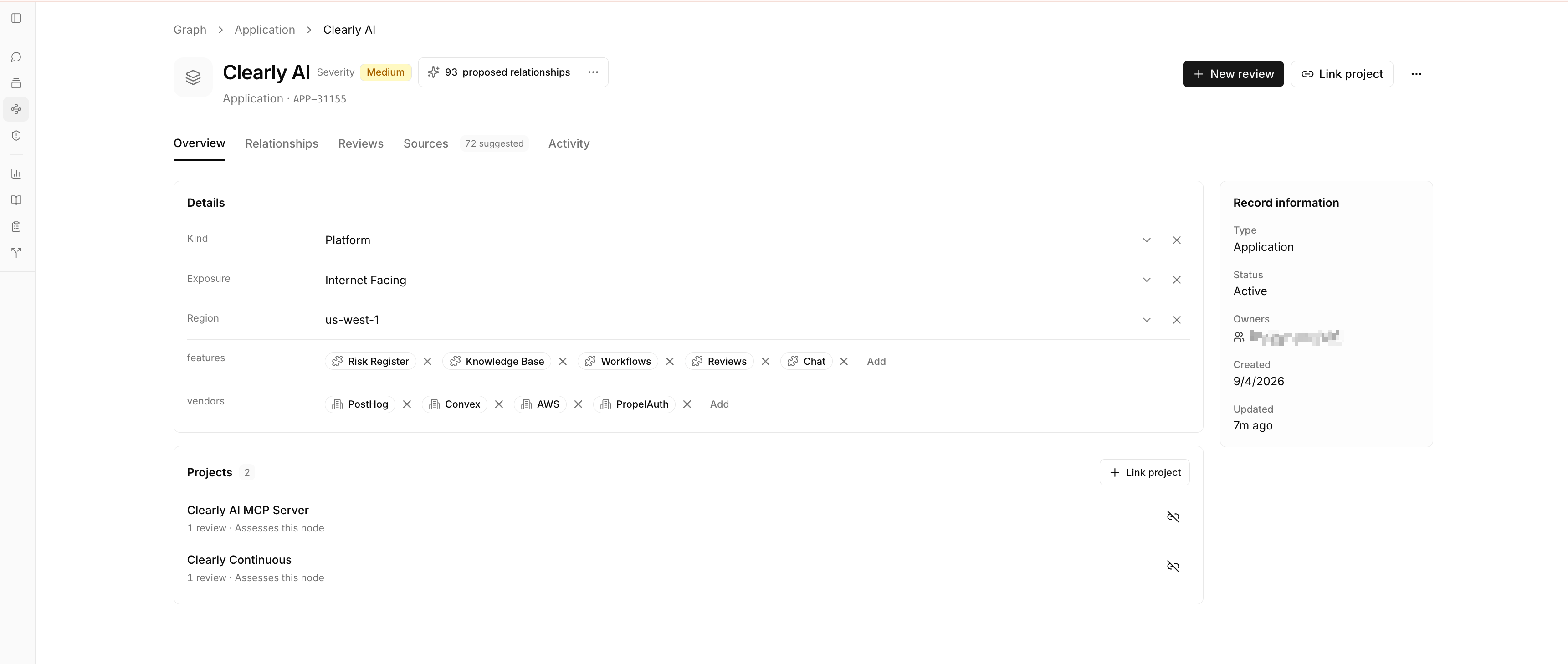
By default, suggestions require approval. In Auto-accept suggestions, Owners and Admins can enable Auto-accept graph suggestions and choose a minimum confidence of High or Medium.
This applies to nodes, relationships, attribute values, and project links. Suggestions below the threshold remain in the queue.
Automatic acceptance can change review context
Automatically accepted project links can bring documents into future reviews when their relationship type carries context.
The following limits apply:
- Node types and relationship types always require manual approval.
- Suggestions from the initial discovery process require manual approval.
- Suggestions supported only by AI-generated review answers cannot be accepted automatically.
- The organization can automatically accept up to 100 records in any 24-hour period.
Automatically accepted changes appear under <n> added automatically this week, with Undo available for seven days. Undo preserves history by archiving nodes or closing relationships. Attribute changes cannot be undone this way if someone has edited the value since.
The node's Activity tab identifies changes made by the automatic acceptance rule.
Permissions and visibility
All organization members can view nodes, attributes, and relationships. Vendor portal users cannot access the graph.
Owners and Admins can create and delete nodes, manage types, and configure automatic acceptance. Members can manage nodes they own, including their attributes and sources. Node owners must be individuals; groups cannot own nodes.
Adding a relationship requires edit access to its starting record and view access to the other record. Any relationship that brings context into a project also requires Contributor or Owner access to that project, including access granted through groups.
Two visibility rules are especially important:
- Connections do not change direct access. Linking records does not grant permission to open a project or document.
- Evidence can appear through the graph. Suggestions and accepted relationships can quote material from linked projects that a member cannot open. Anyone who can view the node can see those quotations. Reviews can also use inherited documents the reviewer cannot open directly.
Discovery runs on behalf of the organization. For a node, this includes descriptions and completed review answers from its linked projects, even when the person requesting discovery cannot open those projects.