
Dashboard (Beta)
Report on your review program over a timeframe you choose, with panels for projects, reviews, non-compliant answers, risks, chat, and tickets.
Dashboard (Beta) reports on your review program across the organization. Pick a timeframe and it shows how many projects and reviews your team created, how long projects take to reach approval, which questions keep coming back non-compliant, how your team uses Chat, and where risks and tickets stand today.
Dashboard is in beta and must be enabled for your organization. Only Owners and Admins can open it. If you do not see Dashboard in the sidebar, ask Clearly AI to enable it.
Open the dashboard
Open Dashboard from the sidebar.
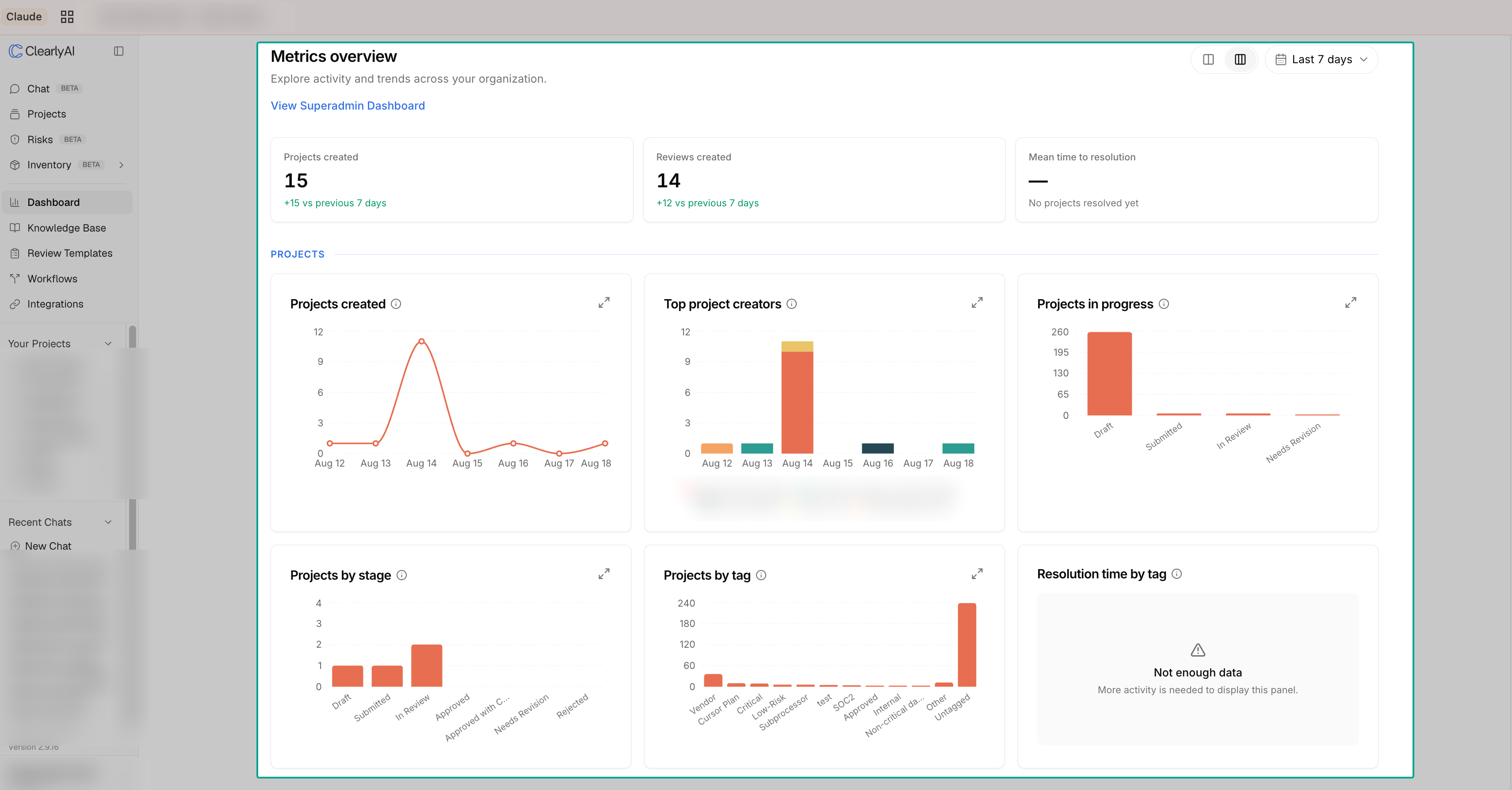
The page has three parts:
- Summary cards at the top for projects created, reviews created, mean time to resolution, chats, time saved, and satisfaction. All except Satisfaction include a comparison with the previous period.
- Panels grouped into Projects, Reviews & answers, Risks, Chat, and Tickets.
- A timeframe selector and a layout toggle in the top right.
A few ways teams use it:
- Compare Reviews created across quarters to see whether review volume is keeping up with intake.
- Check Projects in progress to see how projects are distributed across stages.
- Scan Recurring non-compliant answers for questions worth a policy or template change.
- Watch Answer retries and Satisfaction to judge whether Chat answers land on the first try.
Choose a timeframe
Use the timeframe selector to pick a preset or a custom range.
| Option | Chart buckets |
|---|---|
| Today | Hourly |
| Last 24 hours | Hourly |
| Last 7 days (default) | Daily |
| Last 30 days | Daily |
| Last 90 days | Weekly |
| Last 12 months | Monthly |
| Custom range | Daily up to 32 days, weekly up to 181 days, monthly beyond that |
A custom range can cover up to 24 months and cannot end after today. Calendar boundaries use your browser's time zone.
The page URL carries the timeframe, so reloading the page or sharing the link keeps the same window.
The timeframe applies to activity panels and summary cards. Snapshot panels show the current state of your data and ignore it. Snapshot panels cover items created in the last 24 months. Each panel's table below says which kind it is.
Summary cards
| Card | What it shows |
|---|---|
| Projects created | Projects created during the timeframe, and the change from the previous period of the same length. |
| Reviews created | Reviews created during the timeframe, and the change from the previous period. |
| Mean time to resolution | Average days from project creation to first approval for projects approved during the timeframe. Shows No projects resolved yet when nothing reached approval in the window. |
| Chats | Chat conversations started during the timeframe. A chat counts on its first user message. |
| Time saved | An estimate of analyst time saved: the number of chats in the timeframe multiplied by a flat per-chat allowance. Hover the card to see the current per-chat value. It is a rough value signal and does not measure actual effort, chat length, or answer quality. |
| Satisfaction | Thumbs up as a share of all rated assistant answers during the timeframe, with the raw up and down counts underneath. Unrated answers are excluded. Shows No feedback yet when nothing was rated in the window. |
The change line's color reflects direction: more projects, reviews, or chats is positive, while a rising resolution time is negative.
Panels
Hover the info icon next to a panel title to read its definition in the app. Click the expand icon to open a larger version of the chart.
Projects
| Panel | Type | What it shows |
|---|---|---|
| Projects created | Timeframe | Projects created during the timeframe, bucketed over time. |
| Projects by creator | Timeframe | Projects created during the timeframe, stacked by creator. The five creators with the most projects get their own series; the rest are combined as Other. |
| Projects in progress | Snapshot | Each project's latest stage, counting only projects that have not reached a decision. Covers Draft, Submitted, In Review, and Needs Revision. |
| Projects by stage | Timeframe | Projects that moved into each stage during the timeframe. A project is counted once for every stage it entered. A project created in Draft that moves to Submitted and then In Review during the timeframe counts under Submitted and In Review. Draft counts only when a project moves back into it. |
| Projects by tag | Snapshot | Projects grouped by their current tags. The ten most common tags are shown, the rest are combined as Other, and projects with no tags appear as Untagged. A project with multiple tags counts under each tag, so tag counts can exceed the number of projects. |
| Resolution time by tag | Timeframe | For projects first approved during the timeframe, the days from creation to approval averaged by current tag. Approved and Approved with Conditions both count as approval. Rejected does not. |
Reviews & answers
| Panel | Type | What it shows |
|---|---|---|
| Reviews created | Timeframe | Reviews created during the timeframe, bucketed over time. |
| Reviews by creator | Timeframe | Reviews created during the timeframe, stacked by the user who created them. The five creators with the most reviews get their own series; the rest are combined as Other. |
| Reviews by template | Timeframe | Reviews created during the timeframe, stacked by review template. The five templates with the most reviews get their own series; the rest are combined as Other. |
| Recurring non-compliant answers | Snapshot | The eight questions with the most non-compliant answers across each project's latest active answers. Answers is the number of non-compliant answers; Projects is how many distinct projects they came from. |
Risks
These panels read from Risk Registry and show its current state.
| Panel | Type | What it shows |
|---|---|---|
| Risks by status | Snapshot | Risks by their latest remediation status: Draft, Open, Mitigating, Accepted, Resolved, and Closed. Every status is shown, even at zero. |
| Risks by type | Snapshot | Risks by category. The eight largest categories are shown; risks with no category appear as Uncategorized. |
| Risks by owner | Snapshot | Risks by owner. The eight largest groups are shown; risks with no owner appear as Unassigned. |
Chat
These panels cover Chat usage across the organization.
| Panel | Type | What it shows |
|---|---|---|
| Chats | Timeframe | Chat conversations started during the timeframe, bucketed over time. A chat counts on its first user message. |
| Chat messages | Timeframe | User messages sent during the timeframe, bucketed over time. |
| Answer retries | Timeframe | How often users regenerated an assistant answer during the timeframe. A rising trend can mean answers are missing on the first try. |
| Feedback over time | Timeframe | Thumbs up and thumbs down on assistant answers during the timeframe, stacked over time. |
| Tools used | Timeframe | How often the assistant invoked each built-in tool during the timeframe. The ten most-used tools are shown. |
| Connectors used | Timeframe | How often the assistant invoked each external connector or integration during the timeframe. The ten most-used connectors are shown. |
| Repeated questions | Snapshot | User questions grouped by normalized text, showing up to eight of the most frequently asked questions. Only questions asked more than twice appear, and a question appears only when you can view a chat containing a representative example. Times asked is the number of messages; Chats is how many distinct conversations they came from. |
Tickets
These panels cover tickets Clearly AI created or linked in Jira and Linear through Workflows and integrations.
| Panel | Type | What it shows |
|---|---|---|
| Tickets by sync status | Snapshot | Tickets by the result of their latest sync: Synced, Pending, Conflict, or Failed. |
| Tickets by provider | Snapshot | Tickets by provider (Jira or Linear). Providers with no tickets are left out. |
| Tickets by status | Snapshot | Tickets by their current status in the provider, such as To Do or Done. The eight largest groups are shown. |
Adjust the layout
Use the layout toggle next to the timeframe selector to show panels in two or three columns. Your browser remembers the choice, and it does not affect teammates.